

Broot: The File Navigation Powerhouse Inside Your Terminal
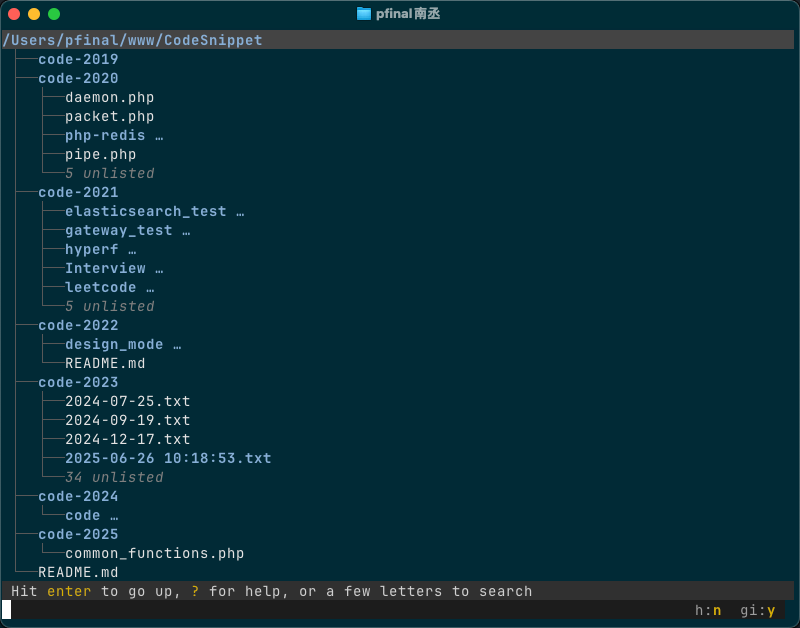
Every time I dive into nested directories with cd, I feel like I’m wandering through a labyrinth looking for an exit. When a project has seven or eight levels of folders, finding one file can make you question your career choices. The tree command helps visualize the structure, but the endless scrolling text quickly becomes visual noise.
Then I discovered Broot, and it completely changed how I navigate files in the terminal.
What Is Broot?
Simply put, Broot is a terminal-based file manager written in Rust. It displays your directories as an interactive tree, letting you browse and search simultaneously. It’s ridiculously fast—even huge directories open instantly.
What Can It Do?
It’s blazingly fast
I tested it on a project with tens of thousands of files—Broot opened it instantly. Complex folder trees that would make tree stutter appear in Broot without delay.
Smart search
You can use fuzzy search (just type a few letters), regular expressions (for the perfectionists), or even search file contents. Finding a file becomes a matter of seconds.
Clean, readable interface
The tree view makes your directory structure crystal clear. You always know exactly where you are—no more running pwd to double-check.
Built-in file preview
Select a file and hit a shortcut to preview it—with syntax highlighting for code. No need to open your editor just to peek inside.
Batch file operations
Copy, move, and delete files directly inside Broot—no more mile-long shell commands.
Dual-panel mode
It’s like a modern-day Total Commander. Two panels, side by side. Moving files feels natural and efficient.
Git integration
This one’s a gem. You can instantly see which files were modified, added, or deleted—perfect for reviewing before a commit.
Cross-platform support
Broot works on Windows, macOS, and Linux. Whatever system you’re using, it has you covered.
Fully customizable
You can configure key bindings, colors, and commands. I’ve remapped mine to fit my workflow perfectly.
Installation
Depending on your system, installation is simple:
If you have Rust installed:
cargo install brootmacOS users:
brew install brootDebian/Ubuntu:
sudo apt install brootOther Linux distributions:
Download the precompiled binaries from GitHub Releases.
First-time setup
The first time you run broot, it’ll ask whether to install a shell function—say yes. This enables seamless integration with your terminal.
You’ll usually add something like this to your .bashrc or .zshrc:
source ~/.config/broot/launcher/bash/brThen restart your terminal or reload the config file.
Basic Usage
Launching
Once configured, just type:
brNavigation
You’ll see a tree view of your current directory.
- Move with arrow keys or
h/j/k/l(Vim users rejoice) Enterto enter a directoryEscorBackspaceto go up a levelCtrl + ↑/↓to jump between directory levels quickly
Searching
Type directly in the input bar to start searching.
- Fuzzy search: just type part of the name
- Regex search: use patterns like
/\.md$/for Markdown files - Content search: prefix with
c/
File preview
Select a file and press Ctrl + → for an instant preview with syntax highlighting.
Common Commands
Use : to enter commands at the bottom.
:q— quit:h— show/hide hidden files:size— show file sizes:dates— show modification dates:git_status— show Git status:cp— copy:mv— move:rm— delete (careful!):mkdir— create directory
Example: select a file, type :cp, and specify a destination path to copy.
Advanced Tricks
Dual-panel mode
Press Ctrl + → to open a second panel.
- Switch panels:
Ctrl + ←/→ - Move files between panels
- Close current panel:
Ctrl + w
Perfect for organizing files—source on the left, destination on the right.
Sorting
Need to find the largest or newest files?
:sort_by_size— by size:sort_by_date— by date:sort_by_name— by name
Great for cleaning up disk space.
Disk usage
:sizes visualizes folder sizes—far clearer than du.
Run external commands
You can run commands directly from Broot:
:!cat {file}
:!code {file}
:!vim {file}
{file} auto-expands to the selected file’s path.
Custom configuration
Config lives at ~/.config/broot/conf.hjson.
Example: add a custom “open in VS Code” command:
{
  "invocation": "code",
  "execution": "code {file}",
  "leave_broot": false
}
Git integration
Run :git_status in a Git repo to view:
M— modifiedA— addedD— deleted??— untracked
Instant project overview before committing.
Handy Tips
Quick project access
Add an alias in your shell config:
alias brp='br ~/projects'Now just type brp to open your projects folder.
Integrate with cd
If you run br (not broot), select a directory, and press Alt + Enter, your shell will automatically cd there. No more climbing directories by hand.
Filter by file type
Use regex for fast filtering:
- JS files:
/\.js$/ - Images:
/\.(png|jpg|gif)$/ - Configs:
/\.config/
Disk cleanup
Combine :sizes with :sort_by_size—your biggest folders reveal themselves instantly.
Set bookmarks
Add shortcuts in the config:
{
  "key": "ctrl-p",
  "execution": ":goto ~/projects"
}
Press Ctrl+P to jump straight to your projects directory.
Real-World Scenarios
Searching in large projects
Need to find a component fast?
- Run
br - Type
header - Use arrow keys to navigate
- Preview with
Ctrl + → - Open with
:code
Done in seconds.
Cleaning up node_modules
Front-end projects eating disk space?
- Run
br - Filter
node_modules - Use
:sizes - Delete with
:rm
Free up gigabytes instantly.
Reviewing before commit
- Run
brinside a repo :git_statusto view changes- Preview modified files
- Commit confidently
Much better than git status.
Batch operations
While Broot doesn’t handle bulk renaming directly, you can use :! to call your custom scripts for mass processing.
Tool Comparisons
vs ls:ls only shows the current folder. Broot visualizes the whole structure interactively.
vs tree:tree floods your screen with text; Broot folds, filters, and interacts intelligently.
vs Midnight Commander: MC is powerful but clunky. Broot feels modern and lightweight.
vs GUI file managers: GUI tools require a mouse and context switching. Broot keeps you entirely in the terminal, keyboard only—pure efficiency.
Performance
Written in Rust, Broot is lightning fast:
- Massive directories open instantly
- Minimal memory footprint
- Real-time search feedback
- Handles tens of thousands of files with ease
I benchmarked it on a 50,000+ file project—indexed in under a second.
Final Thoughts
After using Broot for a few months, there’s no going back.
Navigating with cd and ls feels ancient now. I just launch br, search, and jump straight where I need to be. For deep project trees, it’s a lifesaver.
Git integration, dual panels, and real-time previews make it feel like a full IDE inside the terminal. And thanks to Rust, it’s lightning fast and rock solid.
If you live in the terminal or wrestle with complex directory structures, try Broot. Just don’t forget to enable the shell integration—it’s crucial for the full experience.
Since I installed it, I’ve barely used cd at all. 😄
Related Links
- GitHub: https://github.com/Canop/broot
- Docs: https://dystroy.org/broot/
- Config examples: https://github.com/Canop/broot/tree/main/resources
Got questions or thoughts? Drop a comment below!